Showing posts with label Android. Show all posts

Major Mayhem: Adventure Game For Android

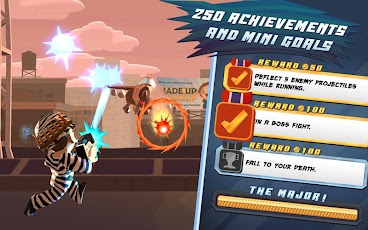
Major Mayhem is one of the most cool adventure game I like. Cool Graphics, Interesting Levels, Costumes attract the user. The performance is good too.


Here's what the developer says:

"Save the world, and your girlfriend

Meet the newest recruit in the Adult Swim Games army: Major Mayhem. He's got an itchy trigger finger, some scratchy stubble, and a fondness for shooting dudes in the face. Run and gun your way through gorgeous 3D environments as you embark on a mission to rescue your kidnapped girlfriend from the Forces of Evil. Guns, grenades and an assortment of other tools of destruction are at your disposal, and you'll need every last one of 'em. So what are you waiting for, Major Mayhem? The future of the Free World -- and your love life -- hangs in the balance."

This game has 45 Levels to complete, 4 different game modes, 150 objectives, 100 achievements, 5 power ups, unique weapons, 42 costumes and much more cool stuff to enjoy!


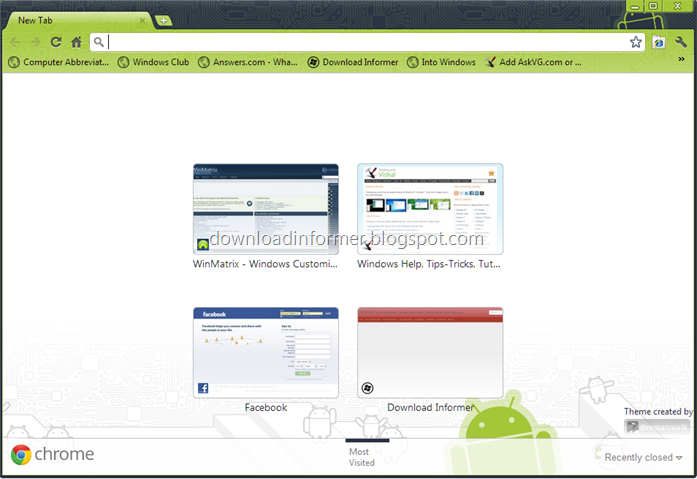
Download Google Chrome 23 Stable


Google Chrome

According to Google, Google Chrome's recent released comes with following featrures/improvements:

  • Mouse Lock API availability for Javascript
  • Additional Windows 8 enhancements
  • Continued polish for users of HiDPI/Retina screens
  • Support for more natural gaming on web apps
I will update the topic whenever an update is available. You can download Google Chrome using following Links: 

Download Google Chrome Online Installer 

Download Google Chrome Offline Installer 

Download Google Chrome Portable

Download Free Game Rope Escape For Android


Here is another cool game for android. Rope Escape is a free and a must have game for android comes with good graphics is a super time killer game. In this game, user has to travel far using the rope and some rocks (in which rope is used) as far as he/she could. There are many cool upgrades for it like magnet, rockets etc. You can challenge your facebook friends using the in-built integration. You will get 2000 FREE coins for integrating the game with facebook. Below is a list of complete features: 

  • Fast and furious continuous gameplay
  • Highly addictive gaming platform
  • Colorful characters for using in-game
  • Collect power-ups in game or purchase via in-app purchases
  • Facebook integration to challenge your friends

How to use Google Cloud Print from Android Phones ?


How to Cloud print from your Android device
If you’ve got an Android-powered mobile device such as a smartphone or tablet then you’ll know just how useful it can be for helping you stay connected on the move, while also streamlining lots of other computing tasks thanks to an array of available apps.
These natty little chunks of software allow all manner of chores to be carried out and, thanks to some recent developments, the world of printing from a mobile gadget has become much more straightforward too. Printing documents used to be all about hooking up to an available device using a tankage of cables and installing software on a traditional machine.
Now though, it can be done with pretty much any mobile gizmo. There is an array of different options for you to get started. Including Google Docs, which allows you to print documents, spreadsheets and other files through Google Cloud Print.
Google_cloud_print_android_phone
What is Google Cloud Print ?
Google Cloud Print is a service that makes the home and work printers available to you and anyone you choose anywhere and anytime. Google Cloud Print works on your phone, tablet, Chromebook, PC, and any other web-connected device you want to print from.
Here we concentrate on using this service from an Android phone.
What all can be printed using this on your Android phone ?
You can also select any other item from your Android device to print, so this could be anything from photographs and diagrams through to lists of contacts and musings from your notepad or clipboard.
Google_cloud_print_android_phone_2
How does this work ?
The service works with a variety of different printers and connects via wireless so you’ll need to configure things first, although this can be done in mere minutes by following the online instructions that comes with the Cloud Print service.
When you’re ready to print an item then you’ll find the service listed in this Share menu, which will then give you quick and easy access to outputting your documents within a few seconds.
Google_cloud_print_android_phone_4
In case the printer you have used to print documents is offline (not connected to internet) then the print job will wait in the print queue in the cloud. Your printer will download and print the document/photo as soon as it comes back online.
[More links at bottom of post]
What kind of Printers can be used ?
Newer Printers which are “CloudReady” connect directly to the internet and can register themselves with Google Cloud Print without a laptop or PC. If you would like touse older printers to Cloud Print then they have to be connected to a laptop or PC, and registered with Google Cloud Print using a feature in Google Chrome.
Google_cloud_print_android_phone_6
Simply select the printer that you want to work with, there should be one that suits your needs, although bear in mind that the service only tends to work with more popular and newer printer models for obvious reasons.
Google_cloud_print_android_phone_5
More options in the Android app
Then all you need to do is queue up your selected document for printing, which will appear in a box like this that gives you the option to begin the printing process to the device that you have chosen in the earlier steps.
Google_cloud_print_android_phone_7
You can also tweak both major and minor settings but accessing the Cloud Print interface controls, and this can be useful for stating the sort of paper size that you want, along with changing printers if you get a newer model over time.
Do watch this video on Google Cloud Print to understand how it works

How To Install Android On PC


Yu just go ahead guys, here's a tutorial to install Android on Laptop or PC:
  1. Download Android SDK Here select the OS that you use
  2. After that install file. Exe that you have downloaded
  3. Now Log where you installed the program earlier and entered SDK Manager (See Figure)
  4. Once you open the SDK manager, the application will load paket2 whatever you can install
  5. Once the SDK manager finished loading there are folder2 or package that you can install, including you want to install a version of the android? in this case I would install android 4.0 (ICS)
  6. then select install (number of packets) packages. number of packages depending on how many packages you tick, and a prompt will appear to confirm the paket2 what you want to install
  7. After that just click install and wait. package will be downloaded from the internet.saturate this time. that could take hours if your slow internet. I myself took about 3 jam.an to install
  8. Click Finish and Close after all terdownlaod package and installed on your computer

Set up Emulator

after take a while to download the package and install it, now you will no longer be able to run android on a PC. yups .. My next follow the instructions to run android on your pc 
  1. After all the setup is complete, go back to the folder where you installed the SDK Manager same as step 1 step 1, and open the AVD Manager. AVD itself stands for (Android virtual device).
  2. Once the AVD is open, please click New, then a new window will appear as below, where the window is the one place you to name the device, screen size, large capacity sd card, ram, and other specifications. see picture to determine its basic setting
  3. After that click create AVD, it will display a prompt as shown below. click OK
  4. After that choose / select the AVD you have created. and click Start 
  5. After clicking start, no need to set anything else, just click launch it
  6. Once you click launch, then you will open the android emulator and boot :) please wait. for the first BOOT does take a long time, about 5 menitan lah, just wait until you are ready to use android.
  7. and iniiiii!! : D Android Virtual Device Ready Used