How to Make a New Email From Gmail

This post is for those of you who are still confused, gmail email from Google. Mail function of gmail but can be used to send emal can also be used to create a blog. If you have a gmail account of this then automatically all google products you can access with this account. 

The following steps create a Gmail Email 
    cara buat email baru
  1. The first step in how to create a Gmail email address is open mail.google.comin your browser. cara membuat email dari gmail
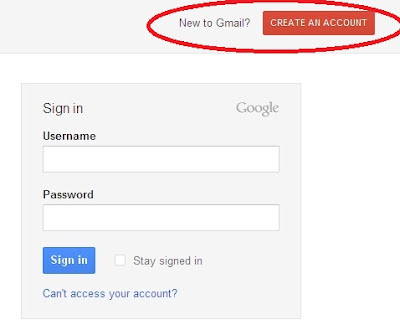
  2. On the registration page there is a log in the right hand column and the Sign in Create an account, please click on CREATE AN ACCOUNT.
  3. You will go to the registration page and follow the all the data you complete, its details are as follows:
  • Name: Fill in the name of your yourself, first name and last name.
  • Name Log-Log desired: the contents of a word to your email address, and make sure the word is not too used by others, check by clicking check availability.
  • Password: This is the password that only you know. Use a strong password but easily remembered by your own.
  • Confirm your password: To ensure the password you entered is correct, google ask you to re-enter the password you wrote down earlier.
  • Security Question: select the type of questions provided by Google.
  • Answer: The answer to the previous question (make sure the answer is only you who can figure it out).
  • Email Recovery: Fill in the email address that already exists, it is useful if there is a problem with or forgotten password.
  • Location: the contents of your location.
  • Date of Birth: Fill in the date of birth, month and year.
  • Type the code shown: You must type the code exactly as shown-up, if one re-up right.
  • Check the small box (service requirements) are readily available to confirm you agree to the terms of google.
  • If the data is completely filled you please press the "I accept. Create my account "to continue
Furthermore, There is an additional verification of the google one through Mobile, enter your phone number and wait for the verification code sent by google via SMS. if you have received the verification code and then enter the verification column that has been provided.
Next you will be redirected to the page please fill in your email and your profile. Email Successfully created.

What is JavaScript?


Judging from its name that uses the word "Java" which is interpreted into the Indonesian language is Java, a lot of people who think if the script is derived from the Javanese. The prejudice is so far away when we study this script. Not a word was derived from the Javanese script. 

In the blogosphere, JavaScript is very well known with a script that can make us fat blogs and blog can create a heavy loading. Many are already familiar with JavaScript, but many also do not know what it is JavaScript. Therefore, let us peel completely. 

According to Wikipedia, JavaScript is a popular scripting language on the internet and can work in most popular browsers such as Internet Explorer (IE), Mozilla Firefox, Netscape and Opera. JavaScript code can be inserted into a web page using the SCRIPT tag. 


The first time designing JavaScript is a company called Netscape Navigator browser to complete his feature-Navigator-which previously had supported Java can be used to further the non-Java programmers. 

JavaScript is usually placed on the section between <head> tag and </ head> tag and starts with <script type="teks/javascript"> ends with the tag </ script> 

Example JavaScript 

<script type="teks/javascript"> 
alert ("Hello World!"); 
</ Script> 

JavaScript files are usually located in a separate file that berektensi *. Js and summoned a way to determine the name of the file and put the tag <script type="teks/javascript" src="nama_file.js"> </ script> So is developing a programming language named LiveScript to accommodate it. Programming languages ??that eventually developed and named JavaScript, although there was no association between the Java language to JavaScript.

CSS itself is a web script that recommended by the World Wide Web Consortium or W3C in 1996. After the standardization of CSS, many browsers already support this script. 

The basic structure of CSS 

selector { 
property: value; 
} 

Part before the {} is called selector 
Section, between {} is called declaration that consists of two elements, the properties and values. 

CSS Example 

body { 
background-color: # d0e4fe; 
} 

Facts Using CSS 
• It is supported by the latest version of the browser 
• Images can be displayed after the main content listed first 
• Reduce the size of the file being able to keep the HTML tags in the minimal use 
• The layout will change because each browser is different CSS translation 
• CSS is layouting "The Future" by merging with XHTML

Introducing WINDOWS 8


Microsoft introduced Windows 8 Preview to public

Microsoft   began introducing its latest operating system Windows 7 successor.  

CALIFORNIA _ Chairman of Microsoft, Bill Gates, in an interview expressed his admiration for Windows 8, which is an important product for the future of the software giant. The founder of Microsoft was assessing the entire ecosystem of Windows 8 was amazing. 
According to him, the ecosystem of Windows 8, users finally get a good mix of an operating system with touch capabilities. 


"People will be amazed at the energy of the placed behind Microsoft's new products. This is great momentum for us," said Gates, as quoted from Softpedia, Tuesday (10/23/2012). 
"This is a huge milestone for all of the products in terms of connecting cloud services. Windows 8, Windows Phone 8, and the latest version of Office comes, all will have a safe, personalized, and beautiful things," he continued. 
Microsoft is calling the next generation of Windows, with the internal code-named "Windows 8,". Windows 8 is a "reimagining of Windows from the chip to the interface". A Windows 8-based PC is really a new type of computing device with a touch screen feature that comes with the ability to adjust the scale on the small screen in the form of tiles (tile base screen). 


Although the new user interface is designed and optimized for touch screen (touch screen), which can be accessed with or without a keyboard and mouse .. The user interface and new apps will work on a variety of screen sizes and pixel densities, from a small board for laptop, desktop, all-in-one, and even classroom-sized displays. This new approach provides more options to the users to use whatever kind of device you want, with the diiginkan peripherals, to run applications on your computer. It is certainly inspire a new generation of hardware and software development, as well as improving the experience for PC users around the world.


Windows 8 that has appeared almost universally, until his ads have been interesting to look at. Operating System Windows 8? for now I myself have used the Operating System
Here I will share about the delivery of ads that often appear on TV, been a few days, the ad appears, not bored-tuh Advertising bosennya clay, so the ads are ads on Promotion of Windows 8, this ad makes me want to sing too, with lyrics the appropriate theme of the ad itself. every ad that appears I was wondering who sings the song in the ad windows 8 it? soundtrack in the ad turns Windows 8 & Lenka: Everything at Once.


Windows 8 release in late October that yesterday (26/10) has been the talk for a week later. Latest operating system offers exciting features to the user experience that is different from before. Recently, Windows 8 is indirectly also popularized another song titled Lenka Everything At Once. This song is a song that was released in 2011 and became Lenka themesong of advertising Windows 8 in 2012.
Lenka is a singer born in Australia 34 years ago. Although 34 years old, and disposition Lenka face still looks cute and young. He was popular thanks to his song called The Show in 2008. The Show is often used as a track for a variety of advertising and become one of the OST titled Hollywood movie Moneyball with Brad Pitt as the main star.


source :microsoft

Windows Phone 8

With the release of Windows 8, Windows Phone 8 is also launched. We look back at what the critics had to say so far: "Start Screen of Windows Phone 8 may be the best of all mobile phones .." says Gizmodo, Windows Phone 8 is a "great cell phone, crazy, incredible" said the other, while Metro commented "Windows Phone 8 will match the greatness of Android". 
No doubt we have to wait for the full release to vote. These are moments that we think is most fun when the Micosoft product launch: 


This is Windows 8 in a cell phone 
Windows Phone 8 using the same technology with Windows 8. It makes the phone software is almost identical to the Windows PC and allows developers to make the same game for Windows Phone and Windows 8. The only difference between Windows 8 and Windows Phone is its size. 
The cell phone is faster and more powerful 
Windows Phone 8 handsets equipped with dual / quad-core (same technology you would find on the Samsung Galaxy S3, iPhone 4S). This means that Windows Phone will operate much faster than ever before. 
The screen is larger and sharper 
The screen is embedded in Windows Phone 8 is enhanced - this will end phones have the screen with 720p high definition. There are also two new screen resolution for sharper images, clear: 1280x765 and 1280x720 


Handset with new coverage 
The first wave of Windows Phone 8 devices to be manufactured by the manufacturer of the phone. We will see other new phones from Samsung, Nokia, HTC, and Huawei. 
You can add storage 
For the first time your Windows Phones equipped with additional removeable MicroSD slot. The extra space can be used for storing photos, music, videos, and install the application. 
The ability to share the better 
You can easily "touch and send" video, music, photos, documents, and files from your phone to other Windows devices. It's all thanks to a new technology called smart NFC (near field communication) - you'll often hear about NFC from now on. 


Start Screen that is designed Birthday 
"The most sexy" in Windows Phone 8 is a redesign of the Start Screen. What also seems just like with Windows 8. 
Instead of using a two-part look wide as in Windows Phone 7, its users will benefit from the three-part look wider.You will be able to determine the size of each of the three parts, made into two broad, standardized view of medium size and small. 
Windows Phone 8 also displays more colors, so you can customize your mobile phone display. 
Internet Explorer 10 
Navigating the internet is now two times faster than the Windows Phone that has been circulating today. 
Windows Phone 8 SmartScreen filter using anti-phishing (theft of data) that can be found in your Windows 8 computer. The filter would block many sites and stop you downloading malicious files that could damage the performance of your mobile phone (great application). 
Easy Updates 
Update Windows Phone 8 will run easily through the wireless network, so you no longer need to connect your phone to a computer to update it again. Microsoft also will provide updated application supporting at least 18 months after the phone was launched. 
You will be able to make payments using the Wallet app in Windows Phone 8


source :microsoft

First Computer Virus, Created by a boy of 15 years


Elk Cloner declared as one of the micro-computer virus that has spread out of scope pembuatanya place.
Created in 1982 by a high school student who was 15 years old. He named Rich Skrenta.Viruses that he made, when it was intended for the Apple II computer system.


At that Skrenta no longer trusted by my garden. It was caused by the behavior that illegally distribute games and software, he often uses floppy disks to turn off the computer or to display the mocking words on the screen. Finally Skrenta also devised a method to do it without a floppy disk so that it is not suspected.
During the winter break at Mt. Lebanon High School, Pennsylvania, USA, Skrenta find how to display a message on the computer automatically. And finally he found what today is referred to as a boot sector virus, and began to spread among the friends of the school as well as in a computer club.
Obtained from sources that the virus spread quickly and successfully infect floppy disks people he knew, including math teacher. Many troublesome virus infected victims. Can imagine how troublesome because when itubelum no single antivirus. Elk Cloner virus can only be removed manually with intricate steps.
Elk Cloner spread by infecting the Apple II operating system with a boot sector virus techniques. This means that if we boot the computer using a floppy disk that had been infected with the virus will be automatically copied to memory. And if there is a clean floppy disk inserted into the computer the virus will copy itself to the floppy it.
Infected computer will display a screen when booting into the poem 50.
Quote:

Here is the poem: 
Elk Cloner: The program with a personality 
It will get on all your disks 
It will infiltrate your chips 
Yes it's Cloner! 
It will stick to you like glue 
It will modify RAM too 
Send in the Cloner!

In conclusion, the Elk Cloner did not make a change just damage system on a floppy containing the Apple DOS.
Currently, Skrenta so Blekko CEO Inc., an Internet search engine

Tempe Becoming The Most Expensive Food in Germany!


Tempe in Germany
If tempeh is the cheapest food in Indonesia, tempeh is a food expensive food is in Germany.
In Germany to get some authentic food from Asia is indeed very difficult to Namuan at the Wedding, which is one of the local immigrant enclave dominated nations in Asia. Sell ​​some food from asia.

Terdapa a store in this city of Vinh Loi in Seestrasse which sells a variety of foods from Asia, TKO-run Vietnamese people are very busy in the daily visit of Asians living in Jerma typical country in search of food their sal.

One of the authentic Indonesian food tempeh are also sold at this store, but the price to get 1 piece of tempeh very expensive unlike in Indonesia know if 1 piece of tempeh can be purchased at a price of USD 2000 only, the German price tempeh brick size 400gr priced 1.79 Euros or equivalent to Rp 28,319. Soybean prices in Germany are almost the same as a kilo of chicken thighs are priced 1.99 euros.

Price tempe expensive in Germany as tempeh termaksut food imports, but tempeh is sold in Germany is not a tempeh from Indonesia, tempeh tempeh sold in Germany is made ​​in Germany there is a company called Natural tempeh makers Vegetarian Food bv
Apparently tempe abroad have a very expensive one yes.

source:yuda.com

STEPS TO INSTALLING LINUX (DEBIAN)


STEP I
Preparation Installing Linux (Debian)
Turn on the computer, and then press [Delete] to enter the bios,
Once in the bios, select the menu
BIOS FEATURES SETUP
press the [ENTER]
After that, choose the Boot Sequence menu in order to CDROM, C, A

[ESC]
Select,
SAVE & EXIT SETUP
press the [ENTER]
press y [ENTER]
Then the computer will start booting again with the boot sequence to CDROM first.

Insert the CD into the CDROM existing debian.

STEP II
Boot from CD
After inserting the CD into the CD-ROM then just wait for the CD boot.
Once the computer boots to the CD, the display appears as follows:
Welcome to Deal
This is debian ...........................................
.................................................. ........

boot: _ [ENTER]

STEP III
Initial Installation Options
After that the computer will be loading ...
Wait until it says the following:

'Choose The Language'
Select the language (preferably English - en). [ENTER]

'Choose Language Variant'
Select 'English (United States)' [ENTER].

'Relase Notes'
Select [ENTER].

'Debian GNU / Linux Installation Main Menu'
There will be a variety of options in the box with the highlighted part
the choice of most of the writing,

Next: Configure the Keyboard

press [ENTER].

'Select a Keyboard'
There will be a variety of options in the box with the highlighted part
select,

qwerty / us: U.S. English (QWERTY)

[ENTER]

STEP IV
Determining Partition Hardisk

'Debian GNU / Linux Installation Main Menu'
There will be a variety of options in the box with the highlighted part
the choice of most of the writing,
Next: Initialize and Activate a Swap Partition
select,
Previous: Partition a Hard Disk
[ENTER]

'Select Disk Drive'
select,
/ Dev / hda
[ENTER]

'Lilo Limitations'
[ENTER]

'Note on additional space for the ReiserFS Journal'
[ENTER]

Display will show the existing partitions on the hard disk hda, with this information you will know where the location of the swap partition and the partition where you would put a '/' (root).
Select [Quit]
by moving / pressing the arrow to the right. [ENTER]

STEP V
Initialize Partition Swap

'Debian GNU / Linux Installation Main Menu'
There will be a variety of options in the box with the highlighted part the choice of most of the writing,

Next: Initialize and Activate a Swap Partition
[ENTER]

'Scan for Bad Blocks? '
select [ENTER]

'Are You Sure? '
select [ENTER]

STEP VI
Choosing the type of File System on Linux Partitions

'Debian GNU / Linux Installation Main Menu'
There will be a variety of options in the box with the highlighted part
the choice of most of the writing,

Next: Initialize a Linux Partition
[ENTER]

'Choose Filesystem Type'
There are 3 options in the box, select it,

Ext3: Next Generation of Ext2, a journaling filesystem
[ENTER]

'Select Partition'
Select the partition to be used as "Ext3"
There are 3 options in the box, select it,

/ Dev/sda2: Linux native
[ENTER]

'Scan for Bad Blocks? '
select [ENTER]

'Are You Sure? '
Consider carefully whether you choose / dev/hda2 as "Ext3" when it's right
select [ENTER]

'Mount as the Root Filesystem? '
select [ENTER]

STEP VII
The module installs Kernel and

'Debian's GNU / Linux Installation Main Menu'
There will be a variety of options in the box with the highlighted part the choice of most of the writing,

Next: Install kernel and Driver Modules
[ENTER]

'Select Installation Medium'
select,
cdrom: CD-ROM drive
[ENTER]

'Please insert the CD-ROM'
select [ENTER]

'Please Wait'

'Select Archive path'
Select the directory where to install the kernel.
/ Instmnt/dists/woody/main/disks-i386/current
[ENTER]

'Please Wait'

STEP VIII
Choosing a Driver

'Debian GNU / Linux Installation Main Menu'
There will be a variety of options in the box with the highlighted part
the choice of most of the writing,

Next: Configure Device Driver Modules
[ENTER]

'Note about loaded drivers'
select, [ENTER]

'Select Category'
Will perform module options to be selected,

1. Select the 'kernel / drivers / input Input Devices. '[ENTER]

'Select kernel / drivers / input modules'
select,
'Kebdev - Keyboard support' [ENTER]

'Kebdev'
select, [ENTER]

'Enter Command-Line Argumens'
No need to fill anything.
[ENTER]

select,
'Mousedev - Mouse support' [ENTER]

'Mousedev'
select, [ENTER]

'Enter Command-Line Argumens'
No need to fill anything.
[ENTER]

Select 'Exit Finish Return to previous menu. '[ENTER]

2. Select the 'kernel / drivers / net Drivers for network interface cards' [ENTER]

'Select kernel / drivers / net modules'
look 'eepro100' [ENTER]

'Eepro100'
select, [ENTER]

or if it fails could try bonding

'Enter Command-Line Argumens'
No need to fill anything. [ENTER]

Select 'Exit Finish Return to previous menu. '[ENTER]

3. Select the 'kernel / fs / msdos
MS-DOS file system '[ENTER]

'Select kernel / fs / msdos modules'
select, 'msdos - PC BIOS' [ENTER]

'Msdos'
select, [ENTER]

'Enter Command-Line Argumens'
No need to fill anything.
[ENTER]

Select 'Exit Finish Return to previous menu. '[ENTER]

4. Select 'kernel/arch/1386/kernel i386-base drivers. '[ENTER]
select, 'apm' [ENTER]

'Apm'
select, [ENTER]

'Enter Command-Line Argumens'
No need to fill anything.
[ENTER]

select, 'CPUID' [ENTER]

'CPUID'
select, [ENTER]

'Enter Command-Line Argumens'
No need to fill anything.
[ENTER]

Select 'Exit Finish Return to previous menu. '[ENTER]

Select 'Exit' [ENTER]

STEP IX
Configure the Network

'Debian GNU / Linux Installation Main Menu'
There will be a variety of options in the box with the highlighted part
the choice of most of the writing,

Next: Configure the network

[ENTER]

'Choose The Hostname'
Replace the words 'Debian' with 'LAB-OS-27-***'
*** Replaced by computer number.
[ENTER]

'Automatic Network Configuration'
select, [ENTER]

'Choose the IP Address'
Change the default to '152.118.27. ***'
*** Replaced by computer number.
[ENTER]

'Choose Network Mask'
No need to be replaced.
[ENTER]

'What is your IP address gateaway? '
152.118.27.1
[ENTER]

'Choose Domain Name'
Write 'cs.ui.ac.id'
[ENTER]

'Choose the DNS Server Addresses'
Replace with '152.118.24.2'
[ENTER]

STEP X
Installing the Base System

'Debian GNU / Linux Installation Main Menu'
There will be a variety of options in the box with the parts that are in
highlight the choice of most of the writing,

Next: Install the base system
[ENTER]

'Select Installation Medium'
select,

'Cdrom: CD-ROM drive'
[ENTER]

'Please insert the CD-ROM'
select, [ENTER]

'Select Archive path'
Select the directory to install the base system.
/ Instmnt
[ENTER]

'Installing Base System, please wait'
Wait until the installation is finished.

STEP XI
Creating a Bootable System Being

'Debian GNU / Linux Installation Main Menu'
There will be a variety of options in the box with the highlighted part
the choice of most of the writing,

Next: Make System Bootable
[ENTER]

'When the LILO boot loader should be installed? '
Select,
/ Dev / hda: Install LILO in the MBR (use this if unsure).
[ENTER]

'Other bootable partitions'
Select,
Include Put all into the menu.
[ENTER]

'Securing LILO'
[ENTER]

STEP XII
Creating Boot Floppy

'Debian GNU / Linux Installation Main Menu'
There will be a variety of options in the box with the highlighted part
the choice of most of the writing,

Next: Make a Boot Floppy

Insert a floppy disk (in good condition) to the floppy disk
[ENTER]

'Change Disk'
[ENTER]

Wait while making a boot floppy

STEP XIII
Computer rebooting

'Debian GNU / Linux Installation Main Menu'
There will be a variety of options in the box with the highlighted part
the choice of most of the writing,

Next: Reboot The System
[ENTER]

'Rebooting The System? '
Select,
Yes [ENTER]

Then remove the diskette from the floppy disk, while the computer is rebooted.

Remove the cd from cdrom deal.

Wait until the lilo boot as below,

Linux
WIN / Dos

Choose Linux [ENTER]

STEP XIV
Debian System Configuration

It will then go to look like this:
'Debian System Configuration'
[ENTER]

'TimeZone Configuration'
Is the hardware clock set to GMT
Select,
[ENTER]

What area do you life in?
Select,
Asia [ENTER]

Select a city or time zone:
Select,
Jakarta [ENTER]

'Password setup'
Shall I enable md5 passwords?
Select,
[ENTER]

Shall I enable shadow passwords?
Select,
[ENTER]

Enter a password for the root:
Fill it with 12 345
[ENTER]

Re-enter password to verify:
Fill again with 12 345
[ENTER]

Shall I create a normal user account now?
Select,
[ENTER]

'Debian System Configuration'
Shall I remove the pcmcia packages?
Select,
[ENTER]

Do you want to user a PPP connection to install the system.
Select,
[ENTER]

'Apt Configuration'
Choose the method apt should user to access to the Debian archive:
Select,
cdrom [ENTER]

Insert cd into the cdrom deal.

Enter the CD ROM device file:
/ Dev / cdrom [ENTER]

Scan another CD?
select [ENTER]

Add another apt source?
select [ENTER]

Use security updates from security.debian.org?
select [ENTER]

Run tasksel?
select [ENTER]

Run dselect?
select [ENTER]

Run dselect?
select, [ENTER]

Wait while the package was to configure what will be taken,
until there is written like this:
Do you want to continue? [Y / n]
Typing y [ENTER]

Do you want to erase any previous downloaded.deb files? [Y / n]
Type,
y [ENTER]
Please enter to continue
[ENTER]

I can do .....
[--- Please return ---]
[ENTER]

You must choose one of the options below:
Enter value (default = '1 ',' x 'to restart):
Type,
5 [ENTER]

'Debian System Configuration'
Have fun!
Thank you for choosing Debian.
[ENTER]

STEP XV
Login
Later will come the message as below:
LAB-OS-27-**** login:
(**** According to the computer where you install)

Try entering the root login and password.

After that we will try to install the package.
How to install are as follows:
type this command at the console:

apt-get install "package name" [ENTER]

As an example we will try to install lynx.
So that must be typed as follows:

apt-get install lynx [ENTER]

Do you want to continue? [Y / n]
typing y [ENTER]

When finished installing lynx try typing this command in the console:
lynx kambing.vlsm.org [ENTER]

If you make it to page kambing.vlsm.org means you succeed.
Congratulations use Debian!
Have a try at home!

How To Install Android On PC


Yu just go ahead guys, here's a tutorial to install Android on Laptop or PC:
  1. Download Android SDK Here select the OS that you use
  2. After that install file. Exe that you have downloaded
  3. Now Log where you installed the program earlier and entered SDK Manager (See Figure)
  4. Once you open the SDK manager, the application will load paket2 whatever you can install
  5. Once the SDK manager finished loading there are folder2 or package that you can install, including you want to install a version of the android? in this case I would install android 4.0 (ICS)
  6. then select install (number of packets) packages. number of packages depending on how many packages you tick, and a prompt will appear to confirm the paket2 what you want to install
  7. After that just click install and wait. package will be downloaded from the internet.saturate this time. that could take hours if your slow internet. I myself took about 3 jam.an to install
  8. Click Finish and Close after all terdownlaod package and installed on your computer

Set up Emulator

after take a while to download the package and install it, now you will no longer be able to run android on a PC. yups .. My next follow the instructions to run android on your pc 
  1. After all the setup is complete, go back to the folder where you installed the SDK Manager same as step 1 step 1, and open the AVD Manager. AVD itself stands for (Android virtual device).
  2. Once the AVD is open, please click New, then a new window will appear as below, where the window is the one place you to name the device, screen size, large capacity sd card, ram, and other specifications. see picture to determine its basic setting
  3. After that click create AVD, it will display a prompt as shown below. click OK
  4. After that choose / select the AVD you have created. and click Start 
  5. After clicking start, no need to set anything else, just click launch it
  6. Once you click launch, then you will open the android emulator and boot :) please wait. for the first BOOT does take a long time, about 5 menitan lah, just wait until you are ready to use android.
  7. and iniiiii!! : D Android Virtual Device Ready Used